

Photo to Video AI Generator — animate any image free
What it costs
- Free tier
- Yes
Credit-based with no subscription: new accounts get free credits and each generation spends them, so you pay per video rather than monthly. No public pricing page exists — credit-pack prices are only visible after signing in, so no entry price is listed here.
Auto-checked on 28 September 2026Source
About Photo to Video
Photo to Video: One Image In, a Directed Clip Out — Across a Dozen AI Video Models
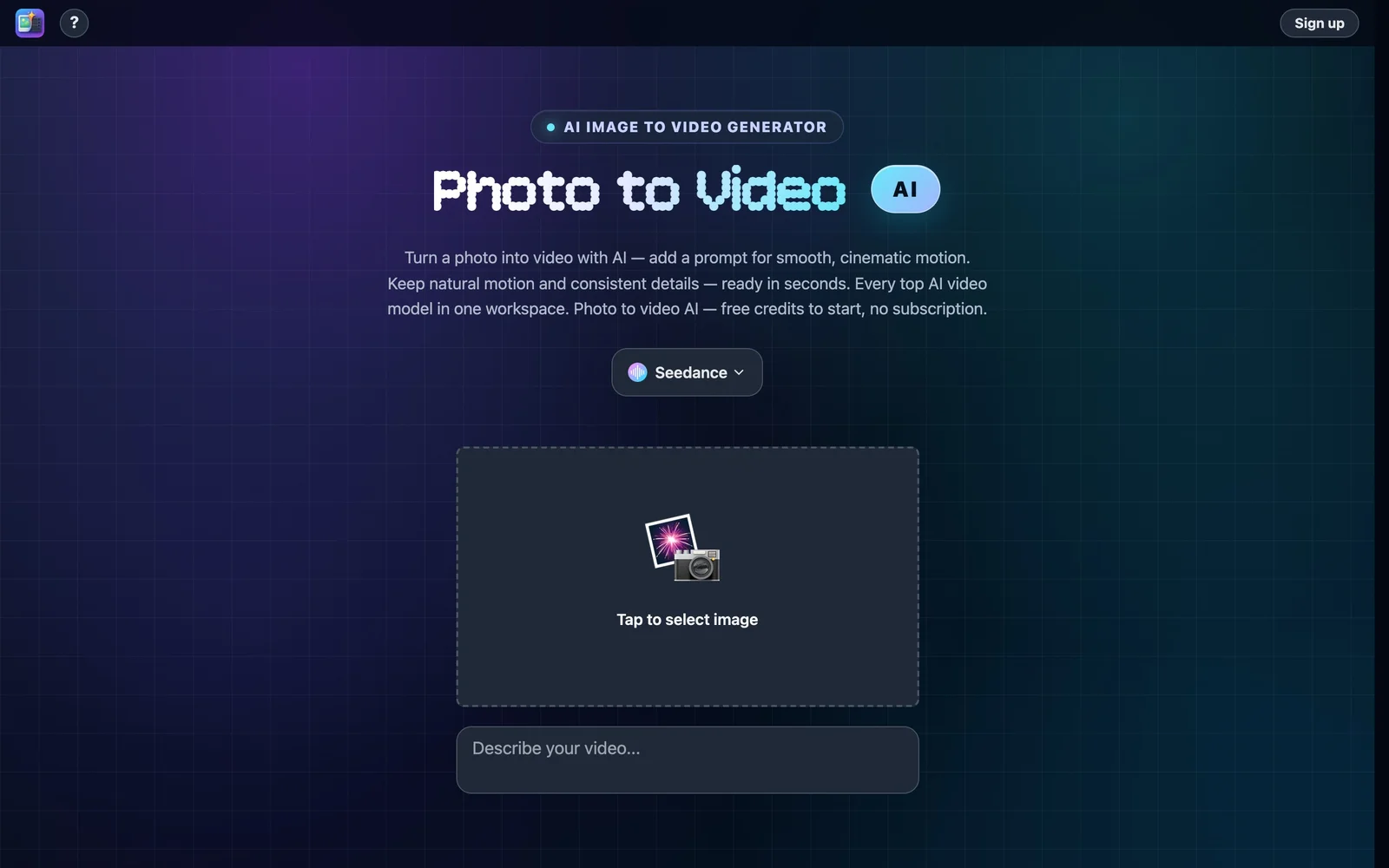
Photo to Video is a browser-based AI image-to-video generator: you upload a still, optionally describe the motion you want, pick a model, and get back a short animated clip. Its distinguishing move is that it does not run a single model. Seedance, Kling, Wan, Vidu, Hailuo, LTX, Veo, Sora 2 and Grok Imagine are all selectable from the same workspace, so you can send the same photo to several engines and keep whichever result works. Billing is credit-based rather than a subscription, and new accounts start with free credits.
Key Features
- A dozen-plus video models in one place — Seedance 2.0 and 2.5, MiniMax H3, Kling 3.0, Wan 3.0, Vidu Q3, LTX 2.5, Hailuo, Veo, Sora 2 and Grok Imagine, switchable per shot so you can compare outputs side by side.
- Directed camera moves — Ask for a snap push-in, a hero close-up or an orbit rather than leaving the motion to chance, and brush the specific detail you want the camera to favour.
- Up to eight reference images — Feed the model extra references so shape, colour and composition hold steady from frame to frame across a multi-shot sequence.
- Six ready-made treatments — Photo animation, portrait animation, 360° product spin, lifestyle scene placement, background animation and straight image-to-video.
- Up to 4K MP4 — Output resolution and clip length vary by model; Vidu Q3 runs 1–16 seconds and Grok Imagine 1–15, with a Download button under each finished video.
- Credits, not a subscription — Free credits on signup, then pay per generation with nothing recurring.
Choosing a Model for the Shot
The multi-model setup matters because these engines are not interchangeable. The site positions Seedance 2.0 at fashion and product motion with cinematic lighting, which suits apparel and catalogue clips. MiniMax H3 is pitched at speed and sound — native 2K with dialogue, effects and room tone generated alongside the picture, and a draft back in roughly five seconds. Kling 3.0 is the one to reach for when a person has to speak, with native lip-sync and multi-shot storyboarding. Wan 3.0 behaves like a wide-angle camera rig for precise product rotations, zooms and pans. Vidu Q3 and Grok Imagine both generate native audio and cover short clips of one to sixteen and one to fifteen seconds respectively. In practice you will run the same still through two or three of these before committing credits to a final render.
What It Does to a Photograph
The six named treatments cover most of what people actually want from a still. Portraits can be made to blink, smile and turn, which is the common use for old family photographs and stiff headshots. Products can be spun on a clean loop to give a listing every angle from a single shot. A subject can be dropped into a new setting — a room, a desk, a street — with the lighting and perspective matched to the original image, and backgrounds can be animated or swapped while the subject's edges stay intact. The consistent claim across all of them is fidelity: the subject is meant to survive the animation recognisably, which is the failure mode that makes or breaks this category.
Where It Stops
Photo to Video is a generator, not an editor. The site says so plainly — "no timeline editing" — and that is a real boundary, not just positioning. You get individual clips, and assembling them into something longer, cutting to music or layering titles happens in whatever editor you already use. Clips are short by nature, measured in seconds rather than minutes, and export is MP4 only. Generation is not instant either: the fastest models return in seconds, but the page puts the typical wait at one to two minutes.
How to Use Photo to Video
- Upload the still you want to animate, or start from a text prompt alone.
- Describe the motion, and add up to eight reference images if the look needs to stay consistent.
- Pick a model based on the shot — lip-sync, product rotation, speed or audio — and generate.
- Compare results across models, then download the one you want as MP4, up to 4K.
Who It's For
- E-commerce sellers who need product motion and 360° spins without a studio booking
- Social and content creators turning existing photography into short-form video
- Marketers producing lifestyle or spokesperson clips from stills they already own
- Anyone wanting to compare several AI video models without a separate account for each
Conclusion
Photo to Video's argument is aggregation plus direction: rather than committing to one video model, you keep a dozen on tap, aim the camera deliberately, and pay only for the renders you run. That suits irregular, project-shaped work far better than a monthly subscription does. The caveats are worth knowing going in — output is short clips with no editing timeline, MP4 only, and the credit-pack prices are not published anywhere before you create an account. For animating photographs you already have, though, having Kling, Seedance, Veo and Sora 2 behind a single upload button is a genuinely practical setup.
Photo to Video pros and cons
- A dozen-plus video models — Seedance, Kling, Wan, Vidu, Veo, Sora 2, LTX and more — selectable per shot from one workspace
- Deliberate camera direction: push-ins, close-ups and orbits, plus brushing the detail the camera should favour
- Up to eight reference images keep shape, colour and composition consistent across a multi-shot sequence
- Credit-based with free credits on signup and no subscription, so occasional use costs nothing recurring
- Purpose-built treatments for portraits, 360° product spins, background swaps and lifestyle scenes
- No pricing page: credit-pack prices are invisible until you create an account, so the real cost can't be checked up front
- A generator, not an editor — no timeline, so assembling clips, adding music or titles happens elsewhere
- Output is short clips (roughly 1–16 seconds depending on model) and MP4 only
- Every generation spends credits, so iterating toward the shot you want has a direct per-attempt cost
- The model version names are the site's own claims and can't be verified from outside
Photo to Video is best understood as a multi-model front end rather than a video product of its own: the value is having Seedance, Kling, Wan, Veo and Sora 2 behind one upload button, with real camera direction and reference images on top. For animating stills you already own — product shots, portraits, archive photographs — that combination is practical, and credits without a subscription fit irregular project work better than a monthly plan. Two things to weigh first. The cost is genuinely unknowable before signup, since no credit-pack price is published anywhere on the marketing site, so budget-sensitive users are buying blind. And the output is short, single clips with no editing timeline, which means this slots in ahead of your editor, not in place of it. Treat it as a shot generator, and it does that job with more control than most single-model tools.
Frequently asked questions
Is Photo to Video free?
There is a free allowance rather than a free plan: new accounts get free credits, and each video you generate spends credits. There is no subscription, so once the free credits run out you buy more and pay per render. The site publishes no credit prices before you sign in.
Which AI video models does Photo to Video support?
Seedance 2.0 and 2.5, MiniMax H3, Kling 3.0, Wan 3.0, Vidu Q3, LTX 2.5, Hailuo, Veo, Sora 2 and Grok Imagine, among others. You choose the model per shot, so the same photo can be run through several engines and compared before you settle on one.
How long are the videos, and what can I export?
Short clips measured in seconds — Vidu Q3 covers 1 to 16 seconds and Grok Imagine 1 to 15, with exact limits varying by model. Export is MP4 at up to 4K via the Download button. Most generations take about one to two minutes, though the fastest models return in seconds.
Can I edit or combine the clips inside Photo to Video?
No. The site is explicit that there is no timeline editing — it generates individual clips from images. Cutting several together, adding music or overlaying titles has to happen in a separate video editor.
Featured Tools
Sponsored
Artlist
Royalty-free music, SFX, 8K footage, templates, LUTs and 100+ AI models on a single subscription for video creators.

Icons8
Large icon packs featuring over 10,000 icons for consistent design themes.

Vidu
AI video generator with text, image and reference-to-video modes, producing 3–16 second clips at up to 1080p with characters that stay consistent across shots.
Your tool here
The tools above are our own picks until the slots sell.
Spotlight
SponsoredRotates daily
Animated Icons 2.0
Enhance your projects with 900+ animated icons.
Tools we recommend

getimg.ai
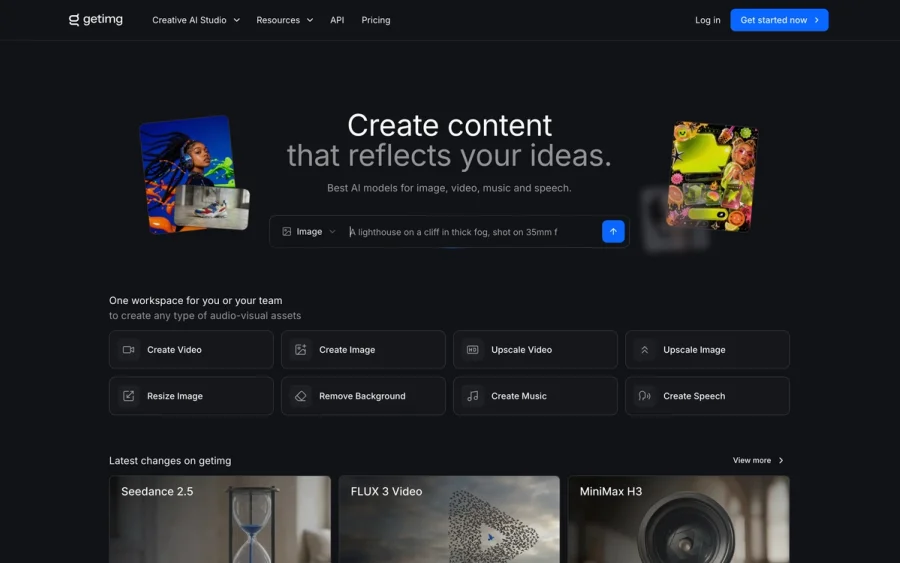
20+ AI models for image, video & audio in one workspace


Hailuo AI
Cinematic AI video with camera control

OpenArt
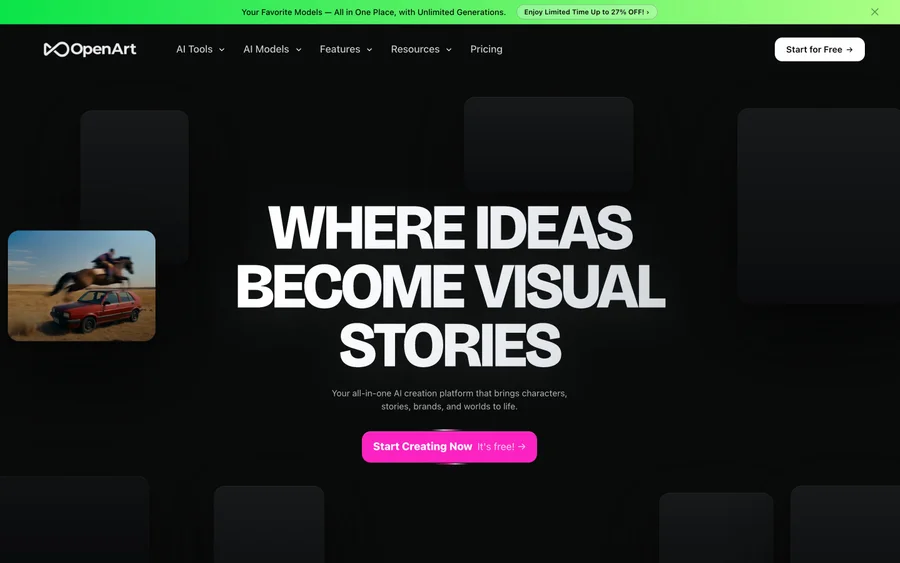
All-in-one AI image, video & audio generator
Editorially chosen. Some links above are affiliate links — if you sign up we may earn a commission, at no extra cost to you.
More AI Tools Tools

Vidu
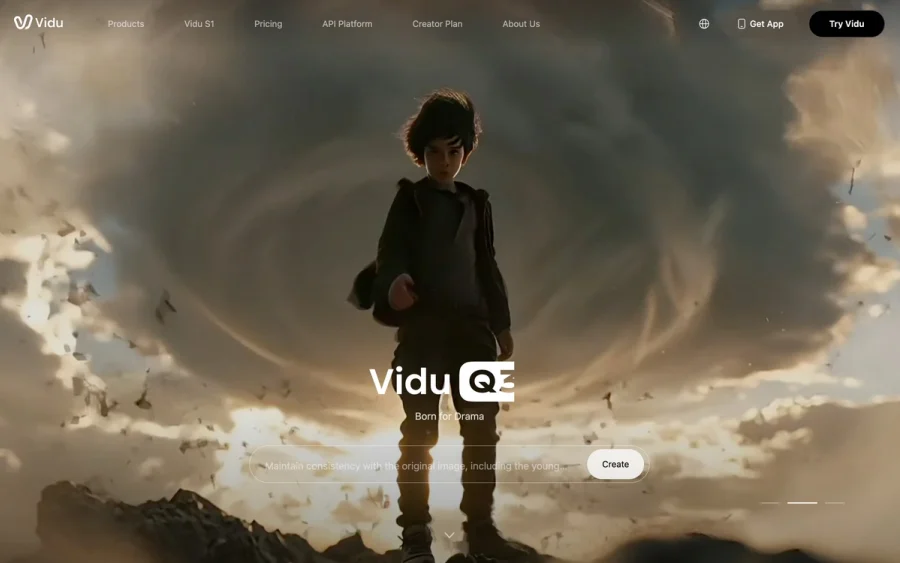
AI video generator with text, image and reference-to-video modes, producing 3–16 second clips at up to 1080p with characters that stay consistent across shots.
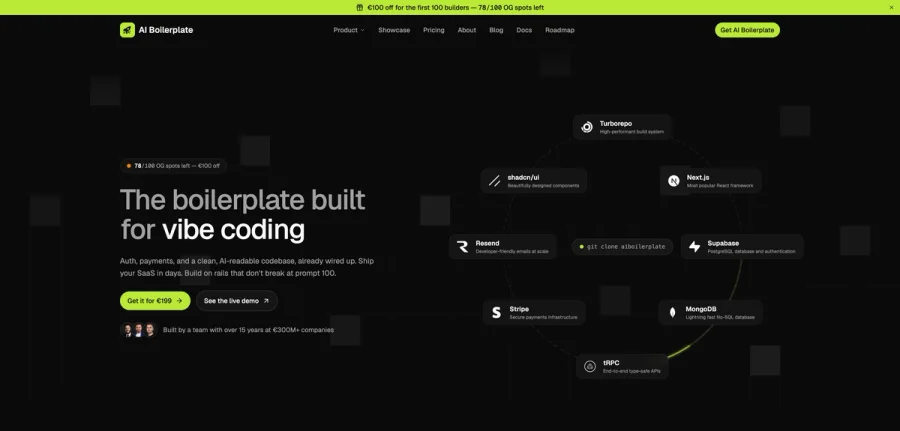

AI Boilerplate
The boilerplate built for vibe coding. Includes authentication, payments, storage, and a clean, AI-readable codebase, already wired up. Build on rails that don't break at prompt 100.
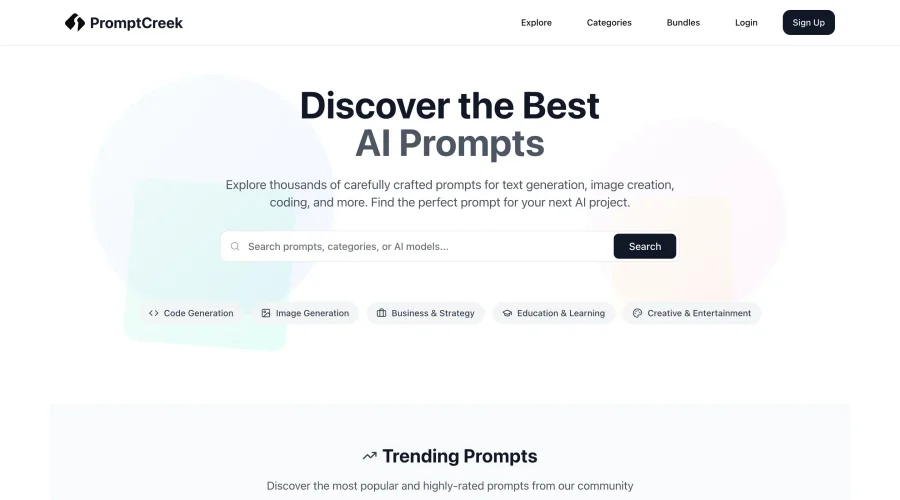

PromptCreek
Prompt Creek is a free community-driven repository featuring thousands of AI prompts. Discover, bookmark, and share quality prompts for ChatGPT, Claude, and other AI tools.
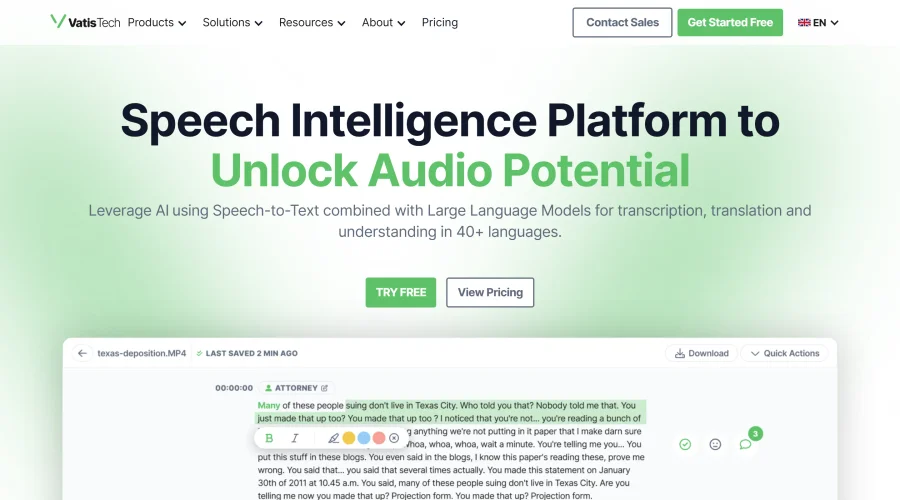

Vatis Tech
Vatis Tech is the most powerful speech-to-text infrastructure. It can be used to transcribe user interviews and client meetings.


DomoAI
AI animation platform that turns text, images, and video into anime, realistic, and custom styles — with video restyle, lip sync, upscaling, and more.

Meshy
AI 3D model generator that turns text or images into game- and print-ready models.
Explore Other Categories
Discover more design resources
New to Design?
Explore our comprehensive design glossary to master essential terminology from A/B Testing to Wireframes.
Browse GlossaryLooking for something specific?
Search through our entire collection of design tools and resources