

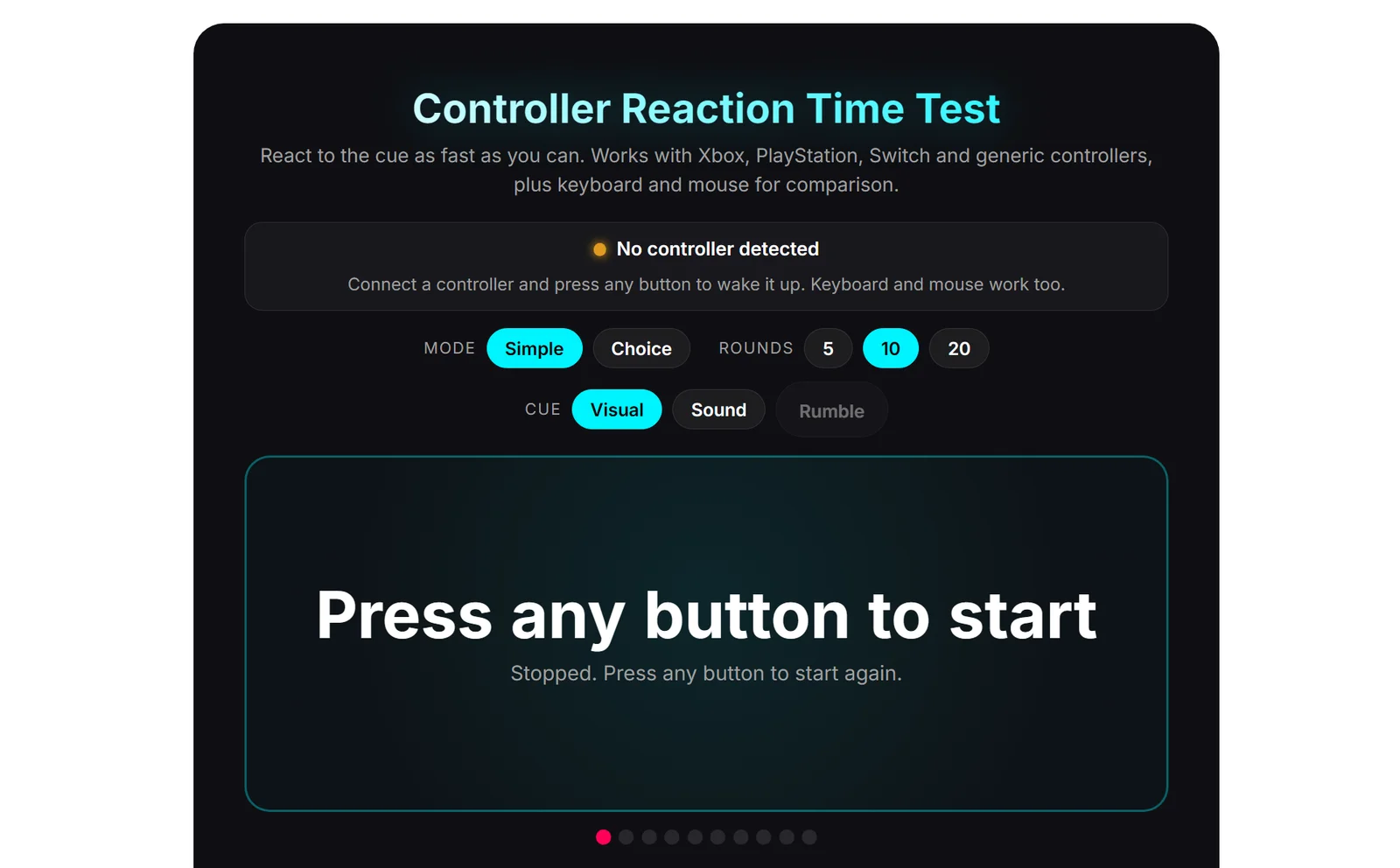
Test your controller’s reaction time online with this free tool from HLPLANET. Measure response speed in milliseconds and check your gamepad’s input latency for gaming.
What it costs
- Free tier
- Yes
Free to use in the browser with no account or paywall on the page, and no pricing page on the site. It is one of four free "Hardware Tests" published by HLPLANET, a gaming peripherals review site, alongside a stick drift tester, a keyboard tester and a keyboard layout comparison — the tools support the publication rather than being sold.
Auto-checked on 3 November 2026Source
About Controller Reaction Tester
Controller Reaction Tester: An Honest Answer to "Is It Me or My Controller?"
Controller Reaction Tester is a free browser test that measures how fast you respond to an on-screen prompt using a gamepad, a keyboard or a touchscreen. What separates it from the dozens of reaction-time pages online is that it refuses to pretend. The number it gives you is your total response time — your own reaction, plus the controller, the USB or Bluetooth link, the browser and your display — and the page says so directly, rather than letting you believe you have just measured your hardware. What it offers instead is a method: run the same test on two different input devices and compare.
Key Features
- Tests any input — Gamepad, keyboard or mouse and touchscreen, each tracked separately.
- Side-by-side comparison — Rounds, median and best per device, so the difference between them is the real finding.
- Setup check — Reads your display refresh rate and the controller's report rate, and reports the baseline delay they add.
- Choice mode — Lights one of four face buttons so you must decide, not just twitch.
- False-start detection — Presses under 100ms are flagged as guesses rather than counted as scores.
- Exportable results — Copy the numbers or save the result as an image.
The Method That Makes It Useful
A single reaction score tells you almost nothing about hardware, because human reaction dominates it — typical visual reaction is 200 to 300 milliseconds, while the differences between controllers live in single-digit milliseconds. The page's answer is a differential: do one run with your controller, then another with your keyboard or mouse, and the gap between the two medians is roughly the extra lag the controller contributes. It also tells you where to stop trusting that gap, noting that anything under about 10 milliseconds is normal variation rather than a result. That single caveat does more for honest testing than most competing tools manage in their entirety.
What the Setup Check Adds
Before you start, a setup panel measures two things that silently inflate every score: your display's refresh rate and how often your controller reports its state. It then shows the average delay those two contribute, and is clear that this amount is baked into every result you will see. There is a useful disclosure buried here too — browsers poll gamepads at a limited rate, frequently 250Hz, so a controller advertising a far higher polling rate will often read as 250Hz. That is a ceiling imposed by the browser rather than a fault in your hardware, and knowing it stops you concluding your expensive controller is underperforming.
Simple and Choice Modes
The default test is a simple reaction: the prompt changes, you press. Choice mode lights one of the four face buttons and requires you to press that specific one, which introduces a decision step. The page sets expectations in advance rather than leaving you to panic at a worse number, noting that choice reaction typically runs about 100 milliseconds slower, landing around 350. Both modes work beyond a gamepad — on a keyboard you use the arrow keys or WASD, and on a touchscreen you tap the lit button. A minimum of three rounds is required before it will give a rating, and it reports median alongside best, so a single lucky press cannot flatter your result.
Where It Stops, By Its Own Admission
The page closes with the kind of paragraph most tools in this category omit. It states that a user-involved test always measures the combined effect of human reaction, the controller's own processing and communication time, and system-level delays — and that genuinely isolating a controller's electrical latency requires dedicated hardware such as electrical or photodiode probes, which is outside what any browser-based tester can do. If you came looking for a number to compare against a reviewer's lab measurement, this will not give you one, and it says so. For working out whether your wireless connection is costing you, or whether a new controller feels slower than your old one for a reason, it is well suited.
How to Use It
- Connect your controller and run the setup check to see your display and report rates.
- Run at least three rounds with the controller.
- Run the same test again with your keyboard or mouse.
- Compare the two medians — the gap approximates your controller's extra lag.
- Treat differences under roughly 10ms as noise, and use a wired connection with the tab focused for the cleanest numbers.
Who It's For
- Players deciding whether a wireless connection is costing them response time
- Anyone comparing two controllers they already own
- People who suspect a new peripheral feels sluggish and want something better than a hunch
- Anyone curious where their own reaction time sits against the 200–300ms norm
- Keyboard and mouse users who want the same comparison without a gamepad
Conclusion
This is a small tool that earns trust by refusing to overclaim. It cannot isolate your controller's latency, it explains clearly why no browser tool can, and it names the laboratory equipment that would be needed instead. In exchange it gives you a disciplined way to answer the question people actually have — whether one input device is slower than another on your own setup — complete with a minimum sample size, false-start detection, median reporting and a stated noise floor. Treat the headline number as mostly a measure of you, and the comparison between devices as the real result.
Featured Tools
Sponsored
Artlist
Royalty-free music, SFX, 8K footage, templates, LUTs and 100+ AI models on a single subscription for video creators.

Icons8
Large icon packs featuring over 10,000 icons for consistent design themes.

Vidu
AI video generator with text, image and reference-to-video modes, producing 3–16 second clips at up to 1080p with characters that stay consistent across shots.
Your tool here
The tools above are our own picks until the slots sell.
Spotlight
SponsoredRotates daily
Animated Icons 2.0
Enhance your projects with 900+ animated icons.
More Accesibility Tools
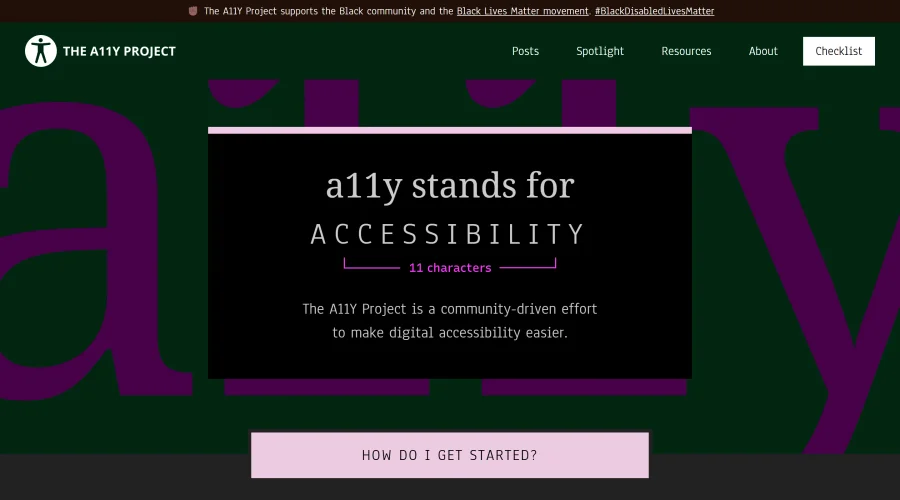

A11Y Project
A community-led initiative to simplify digital accessibility.
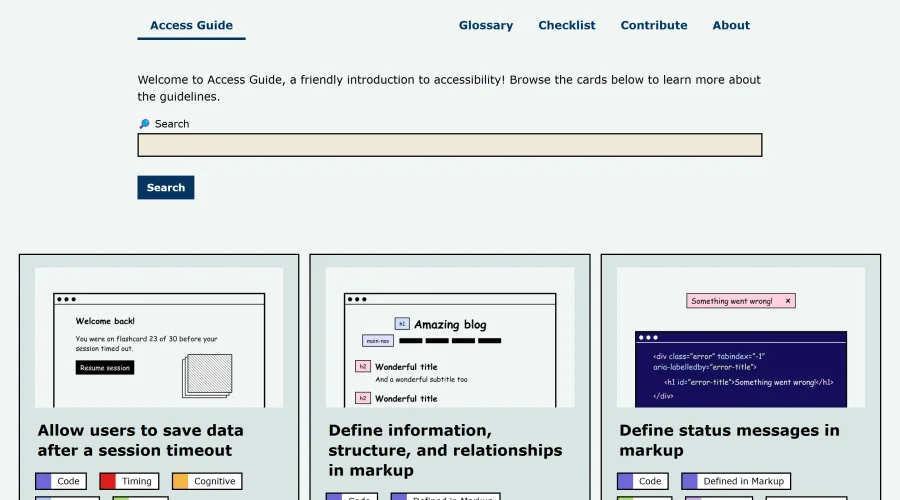

Access Guide
An easy-to-understand introduction to digital accessibility.
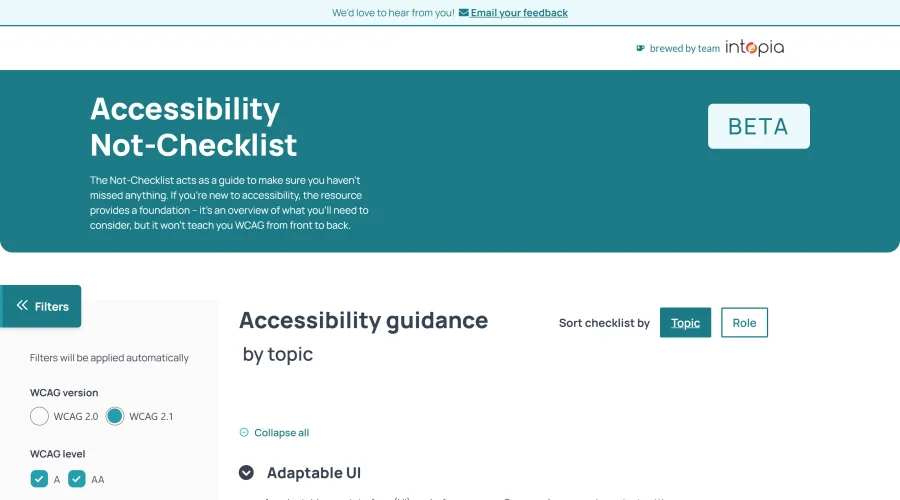

Accessibility Not-Checklist
Comprehensive guide to ensure accessibility in design projects.
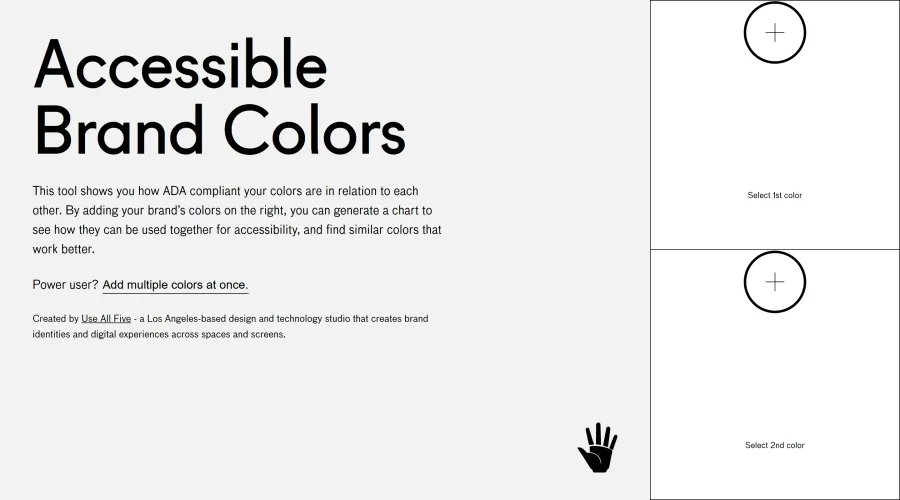

Accessible Brand Colors
A tool assessing ADA compliance of color contrasts.
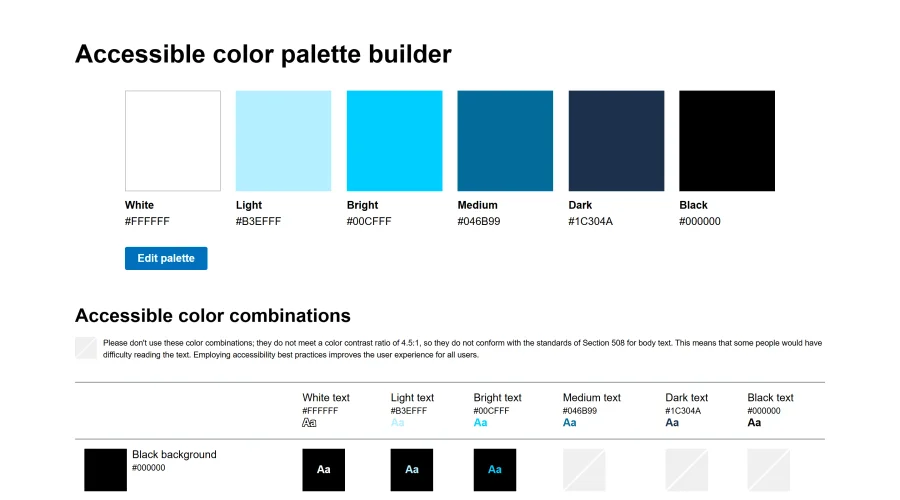

Accessible Color Matrix
A design tool for creating color palettes that meet accessibility standards.
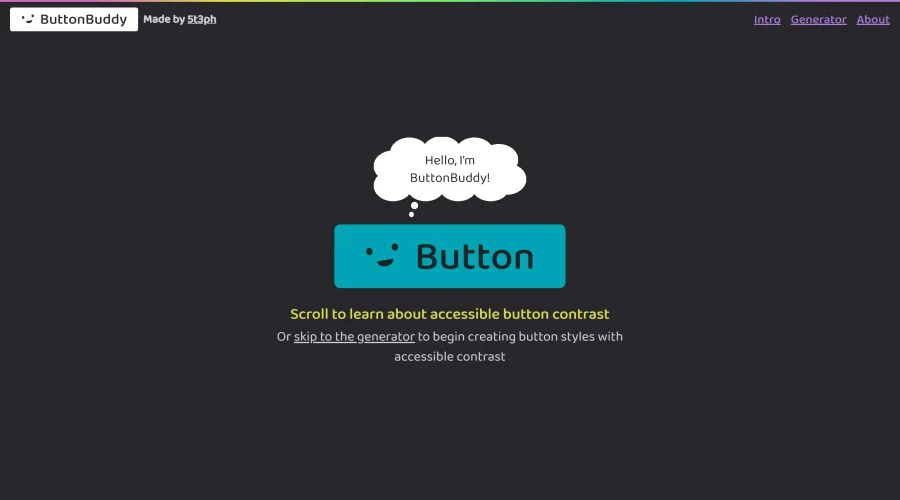

Button Buddy
Solutions for ensuring accessible contrast in button designs.
Explore Other Categories
Discover more design resources
New to Design?
Explore our comprehensive design glossary to master essential terminology from A/B Testing to Wireframes.
Browse GlossaryLooking for something specific?
Search through our entire collection of design tools and resources